The Problem with Productivity Timers
Most pomodoro apps demand attention. They want to live in your dock, send notifications, and add another icon to your already crowded menu bar. When you’re trying to focus, the last thing you need is more visual clutter.
I wanted something different: a timer that’s always visible but never intrusive. Something that becomes part of my desktop rather than fighting for attention.
Something beautiful.
Low key. But not so minimal.
Introducing Orbital
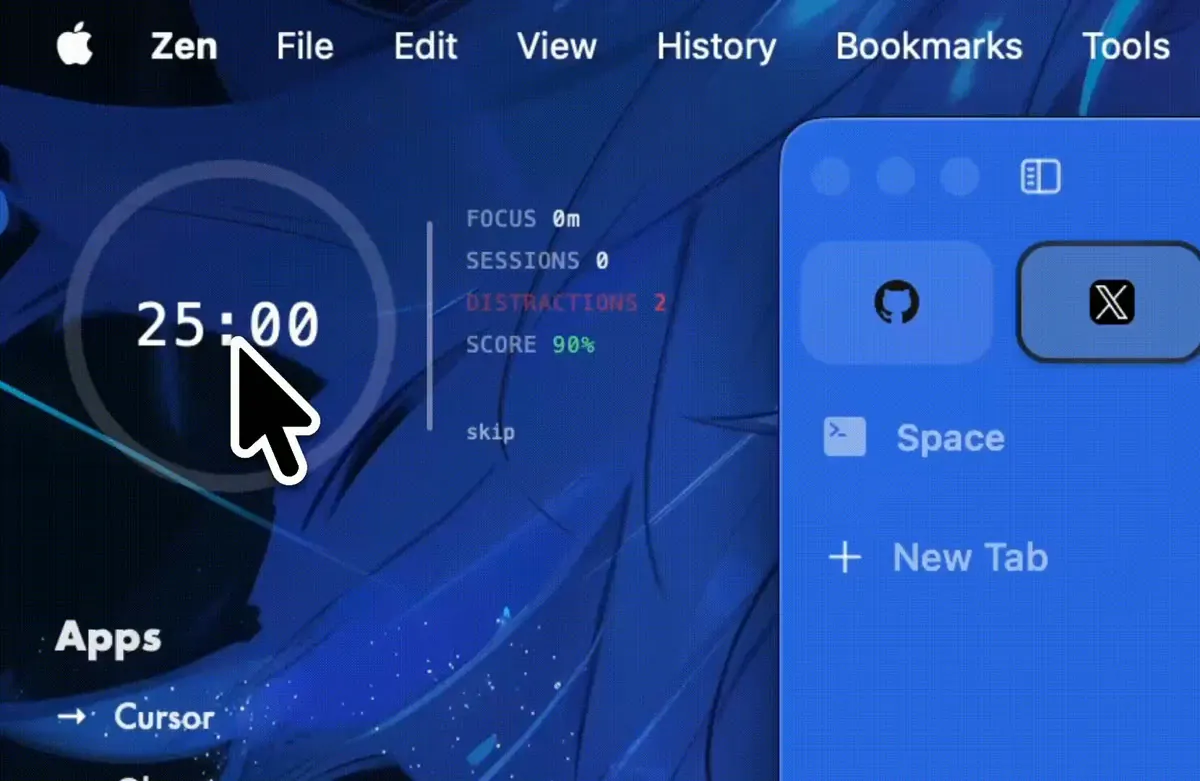
Orbital is a circular pomodoro timer widget for Übersicht that sits directly on your macOS desktop. It’s minimal, configurable, and designed to help you enter a flow state without getting in the way.
🔗 View on GitHub →
The complete source code, installation instructions, and latest updates are available on GitHub.
Features
Minimal Circular Design
The timer is a simple circle that fills as time passes. The remaining time displays in the center using a clean monospace font. No chrome, no buttons cluttering the interface-just click to start, click to pause.
Glow Effects
When the timer is running, a subtle glow pulses around the circle. It’s enough to catch your peripheral vision without demanding focus. The glow color is fully configurable-match it to your wallpaper or use it as a visual anchor.
{
  "enableGlow": true,
  "enableGlowPulse": true,
  "glowColor": "#00ff88"
}
Urgency Colors
As time runs out, the circle transitions through colors:
- Normal: Your configured color (white/black or custom)
- 50% remaining: Yellow tint
- 25% remaining: Orange warning
- 10% remaining: Red with urgent pulse animation
This creates natural time awareness without requiring you to read the numbers.
Automatic Pomodoro Cycling
Orbital follows the classic pomodoro technique automatically:
- Work session (25 minutes by default)
- Short break (5 minutes)
- Repeat 4 times
- Long break (15 minutes)
Each transition triggers a different notification sound, so you always know what’s coming next without looking at the screen.
Session Tracking
The widget displays your progress above the timer:
focus · 3 today
Sessions are persisted to disk, so your count survives restarts. Each new day automatically resets the counter.
Apple Notes Integration
Every completed work session is logged to Apple Notes. A note titled “Pomodoro YYYY-MM-DD” is created (or appended to) in your configured folder:
Pomodoro Sessions - 2024-12-20

Session 1 completed at 10:30 AM
Total focus time today: 25m

Session 2 completed at 11:15 AM
Total focus time today: 50m
This creates an automatic productivity journal without any manual effort.
Do Not Disturb Automation
When a work session starts, Orbital can automatically enable macOS Focus mode. When you pause or take a break, it turns off. No more forgetting to enable DND and getting interrupted mid-flow.
For best results, create two Shortcuts named “Turn On Focus” and “Turn Off Focus” that toggle your preferred Focus mode.
Configuration
All settings live in a single JSON file:
{
  "color": "white",
  "glowColor": "white",
  "workMinutes": 25,
  "workSeconds": 0,
  "shortBreakMinutes": 5,
  "shortBreakSeconds": 0,
  "longBreakMinutes": 15,
  "longBreakSeconds": 0,
  "sessionsBeforeLongBreak": 4,
  "position": "top right",
  "size": 150,
  "showSeconds": true,
  "enableDND": true,
  "showSessionCount": true,
  "enableGlow": true,
  "enableGlowPulse": true,
  "enableUrgencyColors": true,
  "enableAppleNotes": true,
  "appleNotesFolder": "Pomodoro Stats"
}
Position Options
Place the timer anywhere on your screen:
| Position | Description |
|---|---|
top left | Upper left corner |
top right | Upper right corner |
middle left | Vertically centered, left edge |
middle right | Vertically centered, right edge |
bottom left | Lower left corner |
bottom right | Lower right corner |
center top | Horizontally centered, top edge |
center middle | Dead center of screen |
center bottom | Horizontally centered, bottom edge |
Color Schemes
The timer supports two base themes:
"color": "white"- For dark wallpapers"color": "black"- For light wallpapers
The glowColor can be any valid CSS color:
{
  "glowColor": "#7c3aed"
}
Installation
Install Übersicht if you haven’t already
Clone or download the widget to your Übersicht widgets folder:
cd ~/Library/Application\ Support/Übersicht/widgets/
git clone https://github.com/aarongxa/ubersicht-widgets.git
Then navigate to the orbital-pomodoro directory:
cd ubersicht-widgets/orbital-pomodoroOr download directly from the Orbital Pomodoro repository on GitHub and extract it to your widgets folder.
The widget should appear immediately. Click to start your first session.
Usage
| Action | Result |
|---|---|
| Click | Start/pause timer |
| reset | Reset current session (appears when paused) |
| skip | Skip to next session type |
| export | Manually export stats to Apple Notes |
Technical Details
Orbital is built with:
- React - Component-based UI
- Übersicht - Desktop widget framework for macOS
- AppleScript - Apple Notes and Focus mode integration
The timer state persists in module-level variables, surviving Übersicht’s refresh cycles while maintaining accurate time tracking. Stats are saved to ~/.pomodoro_stats as JSON.
View the source code and contribute: GitHub Repository
Why Not an App?
Desktop widgets occupy a unique space. They’re not competing for your attention like apps do. They’re part of your environment, like a clock on the wall. You glance at them when needed and ignore them otherwise.
Orbital embraces this philosophy. It’s not trying to be a full-featured productivity suite. It’s a timer that looks beautiful and gets out of your way.
What’s Next?
Some ideas for future versions:
- Keyboard shortcuts - Start/pause without clicking
- Multiple timer presets - Quick switch between work styles
- Weekly summary - Aggregate stats over time
- Spotify integration - Pause music on timer completion
- Custom sounds - Configurable notification tones
Get Started
Clone it, customize the config, and start your first pomodoro session. Your future focused self will thank you.